Every signed-in device is visible
A messaging account that spreads across phones, tablets, laptops, and a spare hand-me-down in the drawer is harder to keep tidy than it sounds. Shoal handles this by treating each signed-in app or browser as a session — a named thing you can see and sign out.
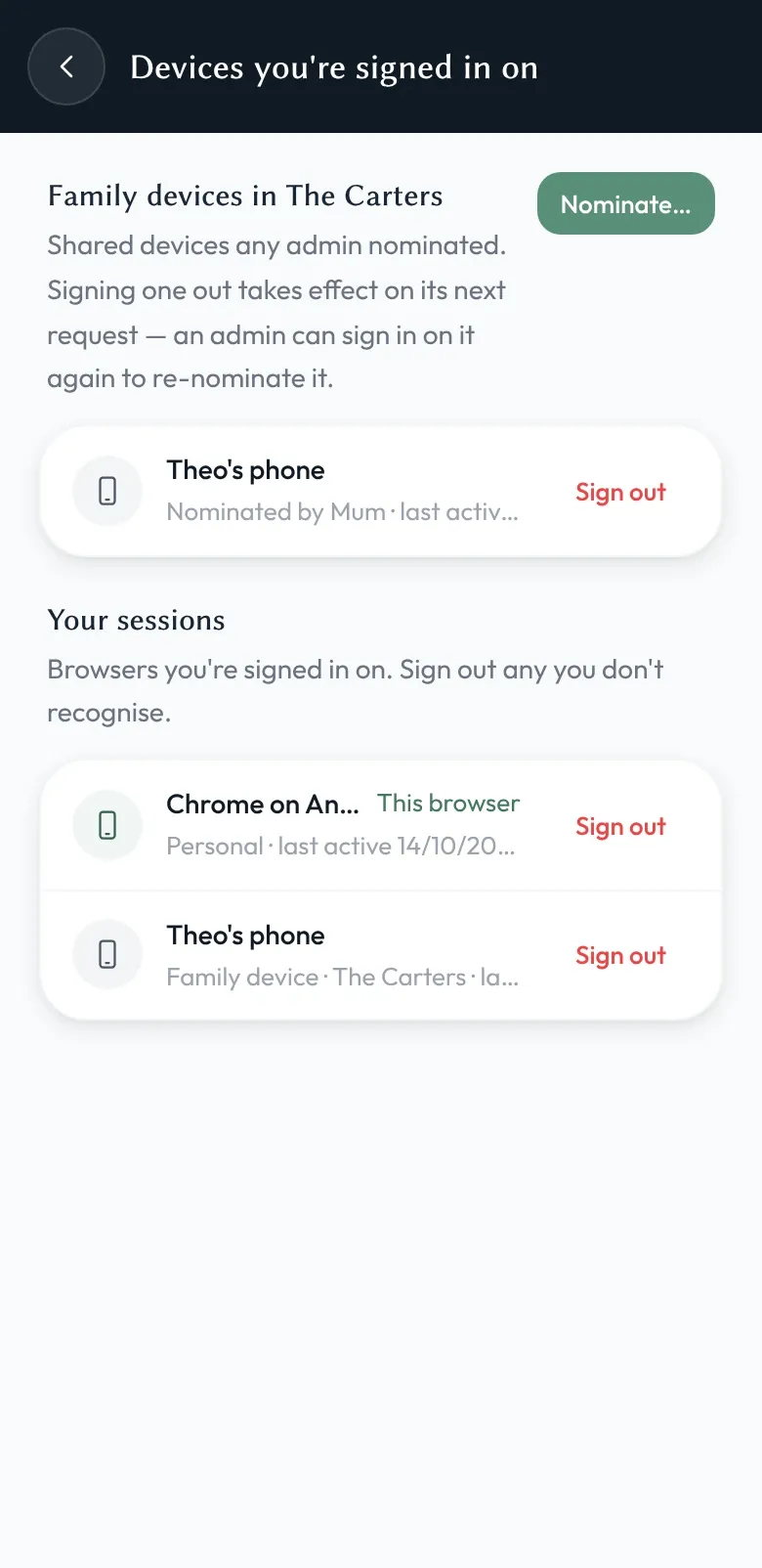
Open Settings → Devices you’re signed in on and you get two lists.
- Your sessions. Every phone, tablet and browser you’ve signed in on, with a friendly name (like “Shoal app on Android”), the last time it was active, and a Sign out button. Includes the device you’re using right now.
- Family devices in this family (family admin only). The shared tablets and hand-me-down phones set up as family devices for this family — whichever family admin set them up. Any family admin can sign out any of these.
What if a phone is lost or stolen?
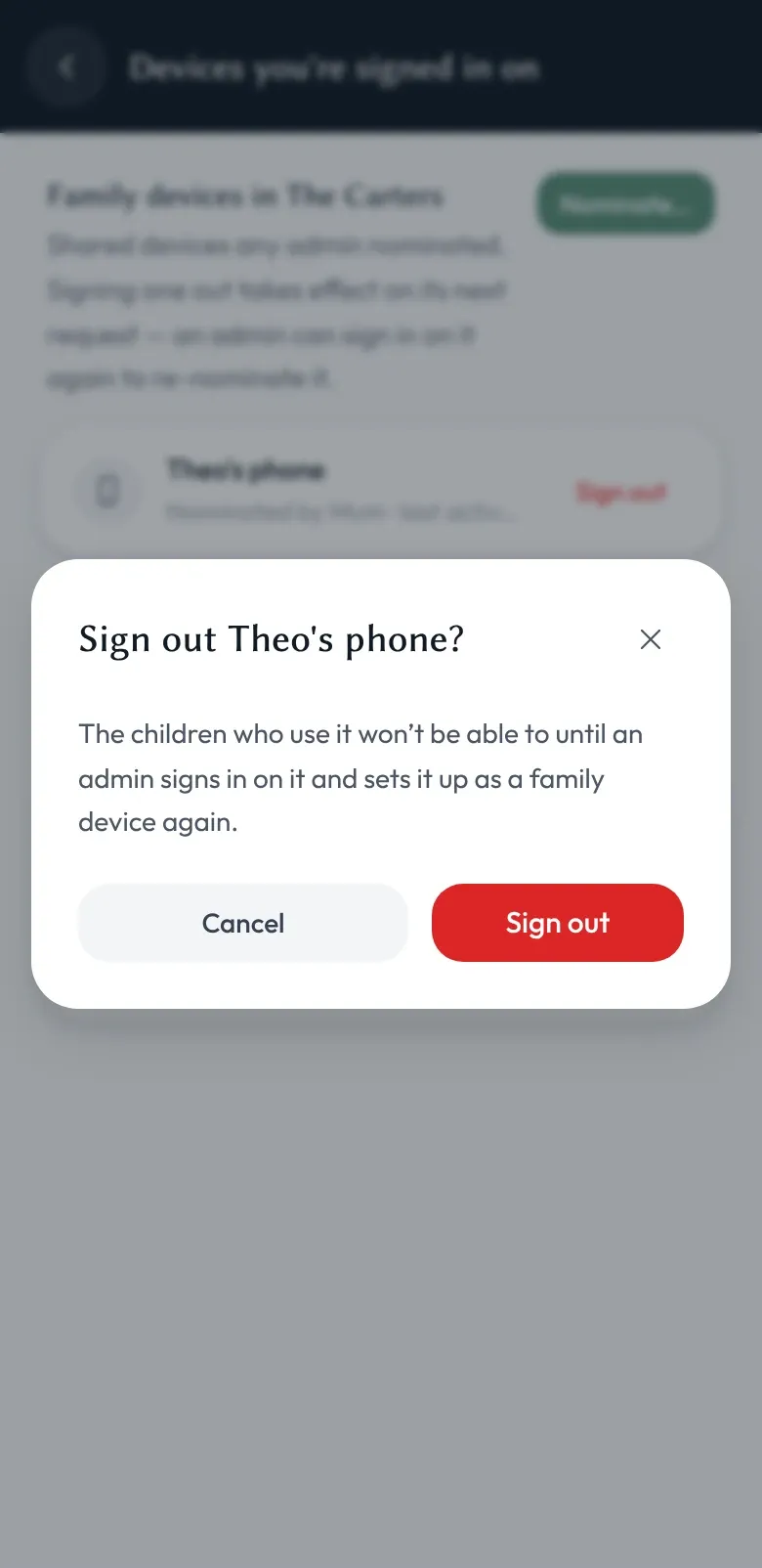
Sign it out from any other device you’re signed in on. Tap Sign out, confirm, and that session is gone from the server’s allow-list. From that point on, any request from that device is refused. If it’s online when you sign it out — Shoal open, a live conversation on screen — the WebSocket closes immediately with a clear reason, and the next thing the user sees is the sign-in screen. If it’s offline at the time, the same thing happens the moment it tries to reconnect.
This is the lost-phone story: as long as one of your other devices is still signed in, you can lock the lost one out of the server in three taps from across the country. The credentials on it can’t be used to reach Shoal again, and no more messages will be delivered to it. What signing out remotely can’t do is reach across the network and erase what’s already stored on the device — anything it had already loaded stays there until that storage is cleared. If the phone is in someone else’s hands, treat the cached threads the same way you’d treat anything else on it, and wipe the device if you can.
Why this matters for family devices
A family device is owned by the family admin (usually a parent, but could be any adult you trust) who set it up. They — and any other family admin in that family — can sign it out from their own phone if it’s been lost, broken, sold, or just outgrown. Children don’t need a separate password to manage; the family admin’s account is the root of trust, and so the family admin is the one who can take it back.
For families split across two homes, this is also the answer to the “is the other parent still signed in on the old device?” question. You can see, and you can change it.
How this fits with the rest of Shoal
Sessions sit alongside magic-link sign-in — together they’re the two halves of the account-control story. Magic-link gets you in without a password; sessions give you a clear way out of any device you no longer trust. Neither requires us to read anything you’ve sent.