How it works
Set up Shoal for your child in about ten minutes.
Works on a new phone, a hand-me-down, or a shared family tablet. You set things up from your own phone first; your child never needs a phone number, SIM or email address.
-
On your phone
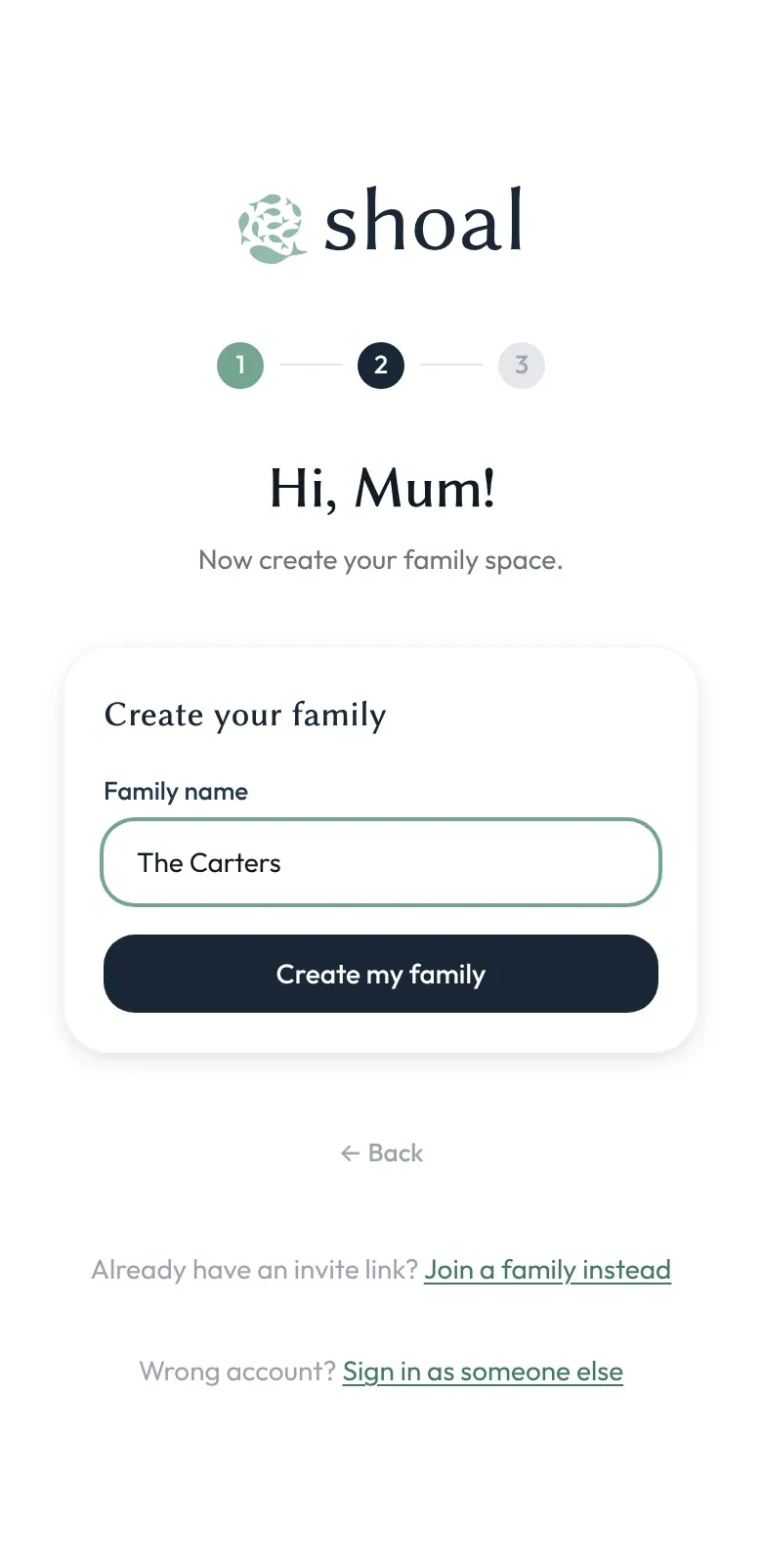
Create your family
Start on your own phone, not your child's. Download Shoal and sign up. Shoal asks for your name, then your family's name, and you become the family's first admin. Shoal is free while it's in beta.
-
On your phone
Add your child — just a name
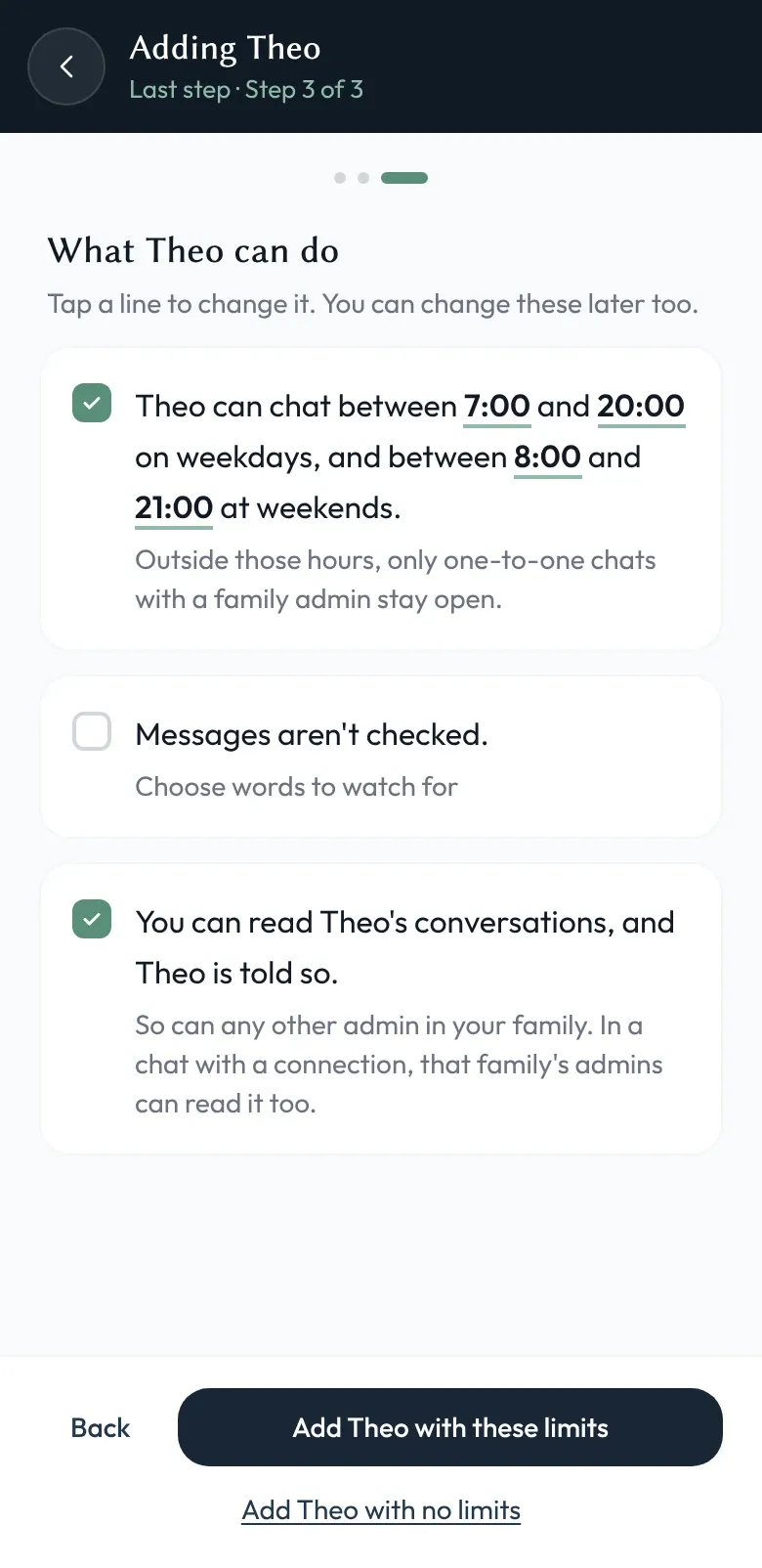
Tap Add member, choose a child, and pick On a family device. No email, phone number or password. Shoal starts every new child with protective defaults, and you can change any of them now or later.
- Cove interface — reading-friendly, with the gentle "Take a moment?" prompt ready for any words you add
- Active hours on — 7am–8pm weekdays, 8am–9pm weekends
- Word rules off — add any you want from their settings
-
On your child's phone
Make their phone a family device
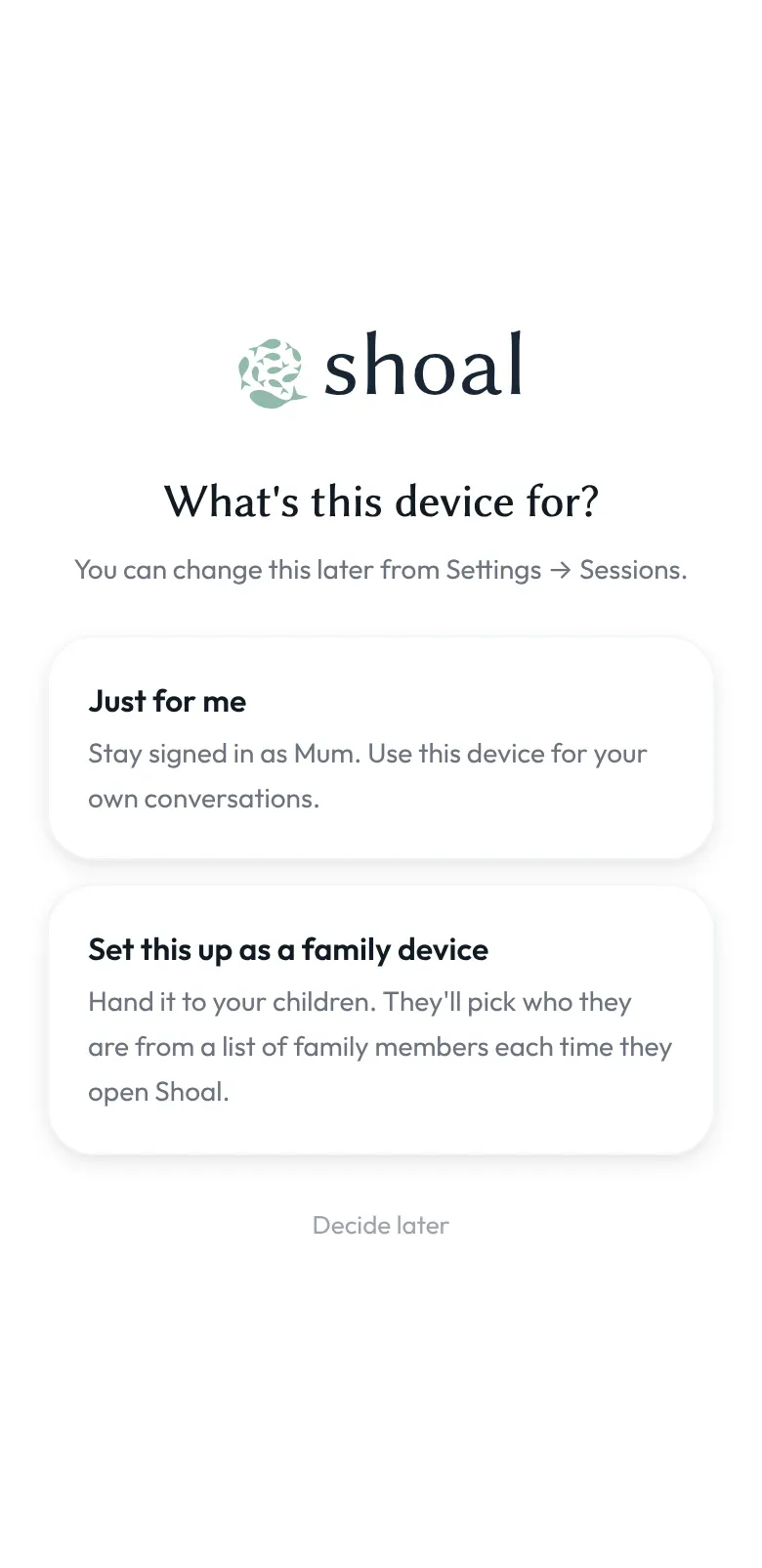
Install Shoal on the phone or tablet your child will use. If it's an old one, update it to the latest software it supports first. Sign in as yourself with your email address and the 6-digit code Shoal sends you, and when Shoal asks what the device is for, choose Set this up as a family device and name it, like "Theo's phone". Your child then taps their own name to start, and your own chats stay off it.
Using an old phone? It's worth erasing it and setting it up as a child's phone first, so its own parental controls are on from the start: see our guides for iPhone and Android.
Shoal asks this the first time you sign in on a device. If you've signed in on it before, go to Settings → Devices you're signed in on → Nominate… instead.
-
On your phone
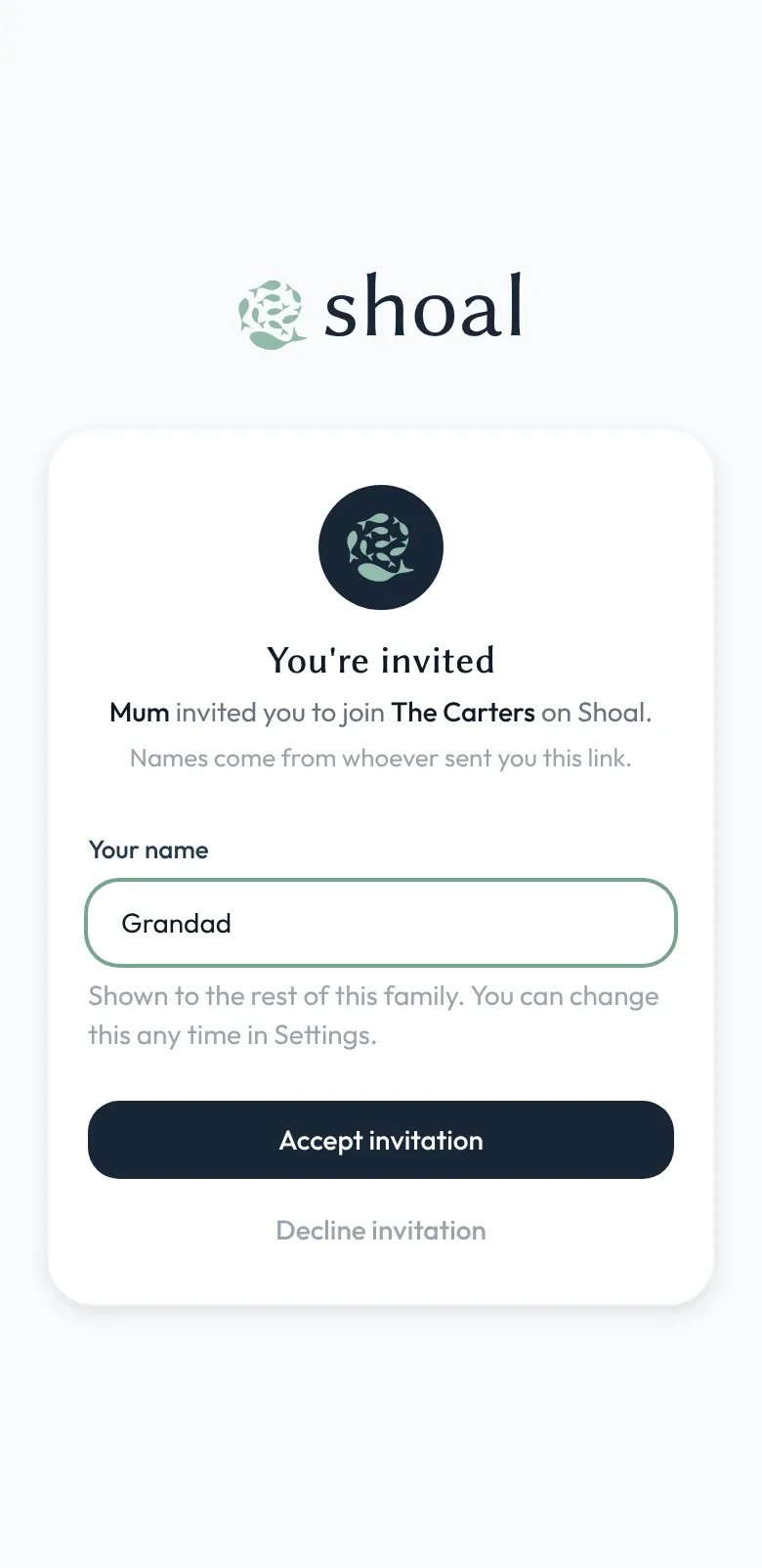
Invite the family
Send an invite link to grandparents, a co-parent or older siblings. They join on their own phone with the Shoal app, or in a web browser, whichever is easiest for them.
-
Parent to parent
Add friends with Connections
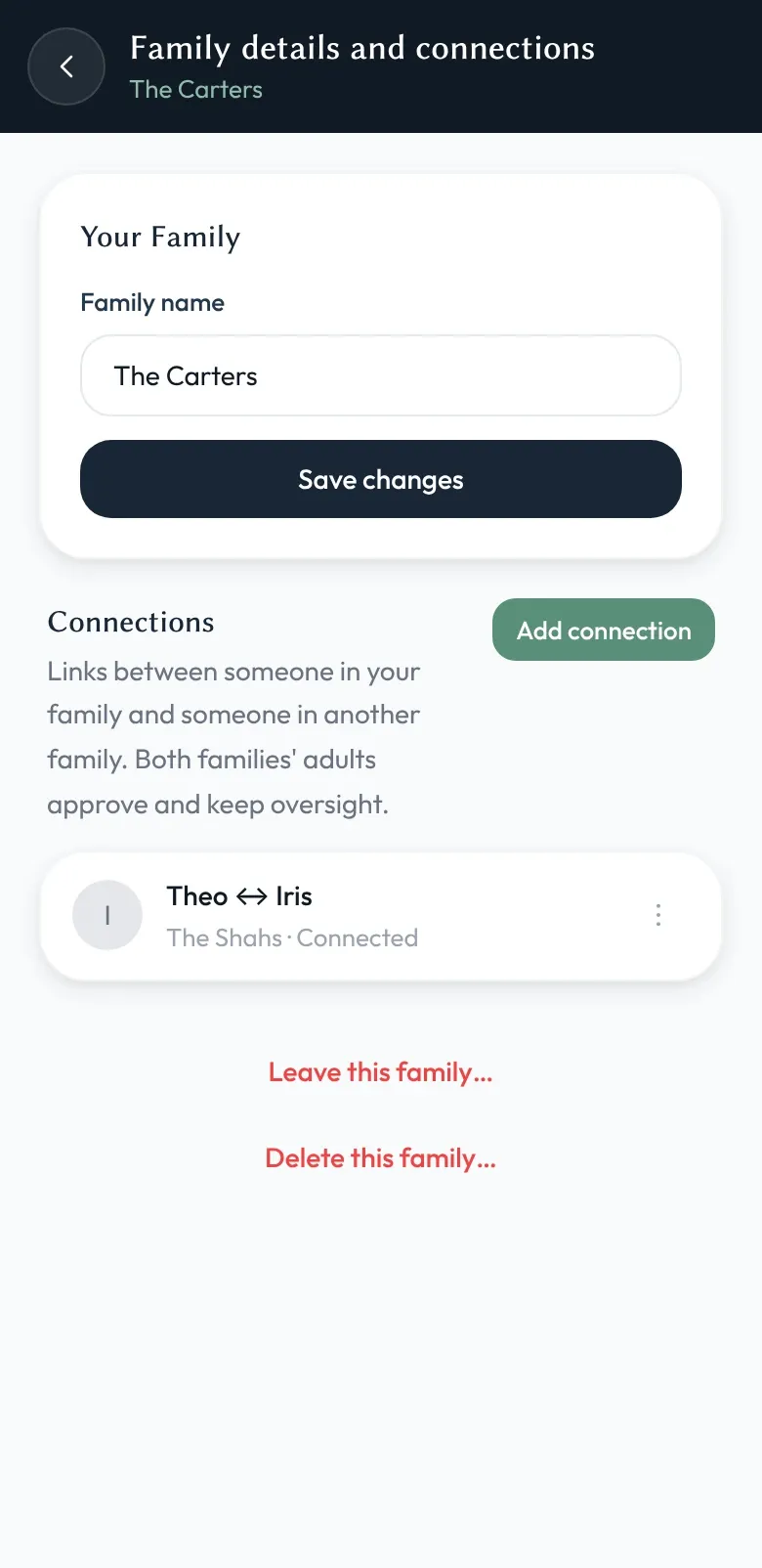
Friends are added by parents, from their own apps. Your child can't add anyone. Go to Settings → Family → Connections → Add connection, choose your child, and send the link to the friend's parent. They need Shoal too, with their child added. When they open the link, choose their child and accept, the two children can chat, and both families' admins can see the conversation.
Optional, but recommended for a first phone
Using an old phone? Set it up for a child first.
Do this before step 3: erase the phone and set it up as a child's phone, so its own parental controls are on from the start and you manage them from your phone rather than theirs. Our step-by-step guides cover the whole thing, including adding Shoal. Menus vary by phone and software version.
iPhone and iPad
- Set it up for a child in your Family Sharing group, so you manage it from Settings → Family on your own iPhone.
- Turn on Ask to Buy, so new apps need your approval.
- Screen Time → Content & Privacy Restrictions → Allowed Apps & Features: switch off Safari and anything else they don't need.
- Screen Time → Allowed Contacts (Communication Limits before iOS 27): keep iMessage and FaceTime to their contacts.
Android
- Create a Google Account for your child in Family Link and sign them in on the phone, so you manage it from your own.
- Require approval for new apps from Google Play.
- Block Chrome, the Google app and any other apps they don't need.
Tip: take out the SIM, or use a data-only SIM, so the phone can't make ordinary calls or texts. On an iPhone, iMessage and FaceTime still work over Wi-Fi, which is why the guide limits them to their contacts. More on this in delaying the smartphone.
Ready when you are.
Create your family on your own phone, add your child, and their phone is ready in minutes.
Free during the beta · no card needed